 Branding
 Digital Marketing
 Web & App Dev
 IT Services
The Second Life of Business Hardware
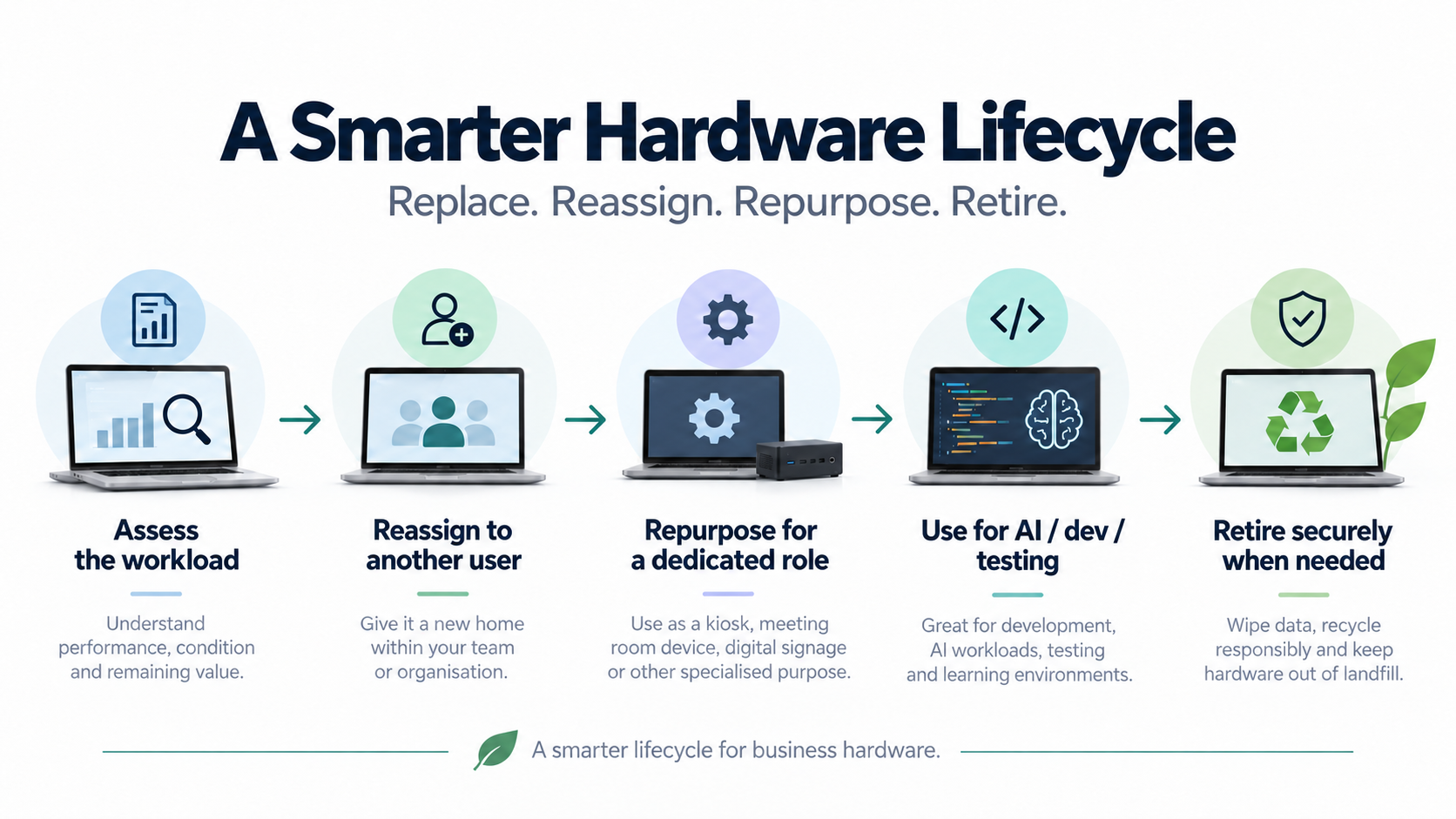
When a computer is no longer good enough for its original user, companies often assume it has reached the end of its useful life. But that isn’t necessarily true. A four-year-old workstation that feels slow to a video editor may still be considerably more powerful than what someone in accounting needs. A laptop that no longer has enough battery life for a travelling employee might work perfectly well connected to a dock at a permanent desk. And a powerful desktop that has been replaced by a newer model could become a development machine, test environment, local AI workstation or dedicated system for automation.
This is why hardware lifecycle management shouldn’t stop at asking, “When do we replace this?”, but rather, “What else could we use this for?”
A practical way to think about that is as a series of steps.
Step 1: Decide Whether the Hardware Is Actually Obsolete
The first question is whether the computer is truly at end of life or simply no longer suitable for the person currently using it.
Computers don’t really become obsolete all at once. They become obsolete relative to the work we are asking them to do. Someone editing 4K video may genuinely benefit from replacing a three-year-old workstation, while someone using Outlook, Teams, Excel and browser-based applications could be perfectly happy using that same machine for another three years.
This matters because businesses often treat computers as though they permanently belong to the employee who originally received them. Once that employee needs something better, the old machine starts moving toward retirement even though it may still be perfectly capable of doing another job.
So before replacing a computer, it is worth separating two questions:
1) Is this computer too old?
2) Is this computer simply no longer right for this workload?
Those are not always the same thing!
Step 2: See If It Can Be Reassigned to Another User
If the machine is still reliable and capable, the next step is to see whether it is a better fit for someone else.
This can create what we sometimes think of as an upgrade chain:
Imagine a company has three employees. One does heavy creative work, another is a general office user, and the third only needs a basic computer for occasional administrative work.
The creative employee receives a new workstation. Their existing computer moves to the office user, and the office user’s computer moves to the occasional-use position.
With one new purchase, three people have effectively received an upgrade. That is a very different outcome from purchasing three new computers simply because all three machines are approaching a certain age.
Portable computers create another good example. Battery degradation is one of the most common reasons older laptops become frustrating for people who travel. But a poor battery doesn’t necessarily make the rest of the computer useless.
If the machine still performs well, it can often be reassigned to someone who primarily works at a desk. Once it is connected to power, a dock, monitors, keyboard and mouse, battery condition becomes much less important.
The same applies to cosmetic damage. A laptop with dents or scratches may not be ideal for someone who regularly meets clients, but it could still function perfectly well as an internal workstation.
The condition that made a machine unsuitable for one employee may be completely irrelevant to another.
Step 3: See If It Can Be Repurposed for a Dedicated Job
If the machine is no longer a good fit for another employee, that still doesn’t necessarily mean it should be retired.
Sometimes an older computer becomes more useful once we stop trying to use it as somebody’s everyday machine.
It could be dedicated to running a particular application, monitoring dashboards, automation, digital signage, conference-room applications, equipment management, remote access, data processing, or backup and recovery tasks.
A computer that is no longer fast enough to comfortably handle an employee’s entire working day may still be more than capable of performing one specific job continuously.
And in some cases, that means avoiding the purchase of another specialized device altogether.
This is where the idea of hardware as a company resource becomes particularly useful. The machine may no longer be the right personal computer, but it can still have value as infrastructure.
Step 4: Look for Higher-Value Second-Life Uses
Some older hardware can also find a second life doing something it was never originally purchased for.
AI is a good example.
Some older high-end workstations contain graphics cards and large amounts of memory that are still extremely capable. A computer purchased several years ago for video editing, 3D graphics or engineering work might also be able to run local AI models surprisingly well. That doesn’t mean every old workstation should automatically become an AI server. But if a company wants to experiment with local AI, it may already own enough hardware to get started without immediately buying an expensive new system.
Development and testing are another good second-life workload.
Developers often need environments where they can test software without affecting production systems. An older computer can sometimes be turned into a lab machine running containers, virtual machines, experimental applications or isolated test environments.
This is becoming more relevant as businesses build more internal applications, automations and AI projects.
The alternative might be paying for additional cloud infrastructure or purchasing dedicated hardware, and sometimes those will still be the better options. But it is also entirely possible that the machine required for an experiment is already sitting unused in a storage room.
Before buying specialized hardware, it is worth asking whether you already own something capable of getting the project started.
Step 5: Check Whether It Is Still Safe and Worth Maintaining
Repurposing does not mean keeping everything forever: There is a difference between finding useful second lives for hardware and turning the office into a technology museum.
Some equipment becomes unreliable, some is too inefficient, and some can no longer run a supported operating system. Some creates security risks, and some simply isn’t valuable enough to justify the time required to maintain it.
Security is particularly important. If a machine can’t run a supported operating system, receive security updates or meet the company’s security standards, its usefulness becomes much more limited.
An older system being used for testing also shouldn’t automatically receive unrestricted access to the corporate network. Depending on what it is being used for, it may need to be isolated.
Data should also be properly removed when hardware moves between employees, and systems being retired should be securely wiped before disposal or recycling.
The objective isn’t to squeeze another decade out of every computer, but to identify equipment that still has meaningful value and avoid throwing that value away unnecessarily.
Of course, eventually everything reaches the point where retirement is the right answer. Good lifecycle management is knowing the difference.
Step 6: Apply the Same Thinking to Other Equipment
The same lifecycle thinking shouldn’t stop with computers. Companies accumulate a surprising amount of equipment over time, including monitors, docking stations, Wi-Fi access points, network switches, firewalls, UPS units, mobile devices, storage devices, servers, cameras, headsets and conferencing equipment.
A lot of this equipment can also be redeployed when offices change, employees move or infrastructure gets upgraded.
A monitor replaced by a designer who needs a higher-resolution display could still be perfectly suitable for another employee. A network switch removed during an infrastructure upgrade might continue to be useful in a lab or secondary location.
The same principle applies: replacement does not always have to mean disposal.
Step 7: Put It Back Into Your Hardware Inventory
None of this works particularly well if nobody knows what the company owns.
A box of miscellaneous laptops sitting in a storage room isn’t an asset strategy. It is just a box of laptops.
Good hardware lifecycle management means keeping track of what equipment exists, where it is, who is using it, its specifications, age, warranty status, condition, security status and potentially where else it could be useful.
That last part is particuarly important. An inventory should not simply tell you what you own today. Ideally, it should also help you understand what could be reassigned or repurposed tomorrow.
Once that information exists, we can make much better decisions.
This way, when somebody needs a computer, the first question doesn’t necessarily have to be:
“What should we buy?”, but “do we already own something that will do the job?”
Where FlexHours Fits
This kind of hardware lifecycle management can be another useful part of Smartt's FlexHours program.
We can review existing equipment, identify what still has useful life, upgrade machines where appropriate, migrate users, securely wipe systems, reassign devices, create development environments, configure virtual machines and repurpose more powerful systems for specialized workloads.
That can reduce unnecessary purchases while helping companies get more value from equipment they have already paid for.
And when buying new hardware really is the better answer, FlexHours clients with Smartt can apply their Hardware Credit toward eligible equipment.
The goal is simply to make hardware replacement part of a broader lifecycle decision instead of treating replacement and disposal as the same thing. Because sometimes a computer really is finished. And at other times, it just needs a new job!
If you're interested in learning more, get in touch!